Cloud9 - Boto3 1.34.74 documentation
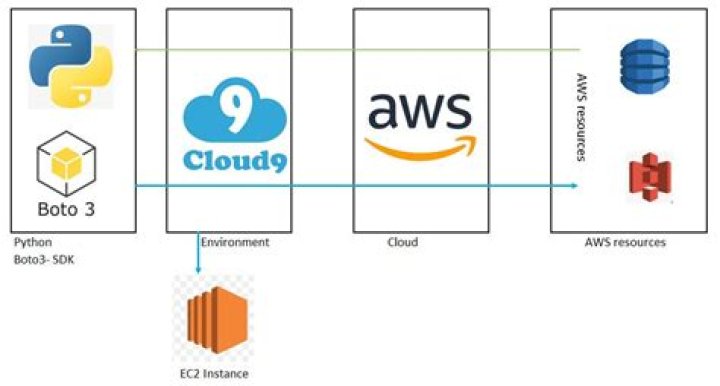
You can use AWS Cloud9 with Boto3 to write, run, and debug your Python code using just a browser. AWS Cloud9 provides an integrated development environment (IDE) that includes tools such as a code editor, debugger, and terminal. Because the AWS Cloud9 IDE is cloud based, you can work on your Python projects from your office, home, or anywhere using an internet-connected machine. For general information about AWS Cloud9, see theAWS Cloud9 User Guide.
Prerequisites
You must already have an AWS account. If you don’t have one, do this to create it:
Go to .
Choose Sign In to the Console.
Choose Create a new AWS account.
Follow the on-screen instructions to finish creating the account.
Step 1: Set up your AWS account
Start to use AWS Cloud9 by signing in to the AWS Cloud9 console as an AWS Identity and Access Management (IAM) entity (for example, an IAM user) in your AWS account who has access permissions for AWS Cloud9.
To set up an IAM entity in your AWS account to access AWS Cloud9, and to sign in to the AWS Cloud9 console, seeTeam Setupin the AWS Cloud9 User Guide.
Step 2: Create an environment
After you sign in to the AWS Cloud9 console, use the console to create an AWS Cloud9 development environment. (A development environmentis a place where you store your project’s files and where you run the tools to develop your apps.) After you create the environment, AWS Cloud9 automatically opens the IDE for that environment.
To create an AWS Cloud9 development environment, seeCreating an Environmentin the AWS Cloud9 User Guide.
Step 3: Set up credentials
To call AWS services from Python code in your environment, you must provide a set of AWS authentication credentials along with each call that your code makes. If you created an AWS Cloud9 EC2 development environment in the previous step, then AWS Cloud9 automatically set up these credentials in your environment, and you can skip ahead to the next step.
If, however, you created an AWS Cloud9 SSH development environment, you must manually set up these credentials in your environment. To set up these credentials, seeCall AWS Services from an Environmentin the AWS Cloud9 User Guide.
Step 4: Install Boto3
After AWS Cloud9 opens the IDE for your development environment, use the IDE to set up Boto3. To do this, use the terminal in the IDE to run this command:
sudo pip install boto3
If the terminal isn’t already open in the IDE, open it. To do this, on the menu bar in the IDE, choose Window, New Terminal.
You can also install a specific version:
sudo pip install boto3==1.0.0
Note
The latest development version can always be found onGitHub.
Step 5: Download example code
Use the terminal that you opened in the previous step, download example code for Boto3 into your AWS Cloud9 development environment. To do this, use the terminal in the IDE to run this command:
This command downloads a copy of many of the code examples used across the official AWS SDK documentation into your environment’s root directory.
To find the code examples for Boto3, use the Environment window to open
the your-environment-name/aws-doc-sdk-examples/python/example_codedirectory, where your-environment-name is the name of your
development environment.
To learn how to work with these and other code examples, seeCode Examples.
Step 6: Run and debug code
To run your Python code in your AWS Cloud9 development environment, seeRun Your Codein the AWS Cloud9 User Guide.
To debug your Python code, seeDebug Your Codein the AWS Cloud9 User Guide.
Next steps
Explore these resources to learn more about AWS Cloud9:
Experiment with thePython Samplein the AWS Cloud9 User Guide.
Learn how to use the AWS Cloud9 IDE by completing theIDE Tutorialin the AWS Cloud9 User Guide.