Creating groups corresponding to Google Classroom classes
7.1.1 Creating groups corresponding to Google Classroomclasses
If you log in to the Polar Cloud using a Google account for whichyou use Google Classroom, then when you click the “CREATE”button towards the upper right of the “GROUPS” screen, asshown in Figure 7.3, the Polar Cloud will ask you whetheryou’d like to create group(s) corresponding to your GoogleClassroom classes. That is, you will not immediately see the“CREATE A GROUP” screen of Figure 7.4; instead you will see a“CLASSROOM TEACHER” screen pop up, as shown in Figure7.8.
Figure 7.8: Polar Cloud CLASSROOM TEACHER screen
If you choose to click “NOT AT THIS TIME, MAYBE LATER”, thenthe Polar Cloud will move on to the “CREATE A GROUP” screen, seeFigure 7.4, and you will have the opportunity to create a PolarCloud group as usual, (regardless of any Google Classroom classgroups you may have); see Section 7.1.
However, if you choose to click “YES, LET ME CHOOSE SOMECOURSES”, then you will be offered the opportunity to use yourexisting Google Classroom class information to create correspondingPolar Cloud groups; see Figure 7.9.
Figure 7.9: Polar Cloud Google Classroom screen
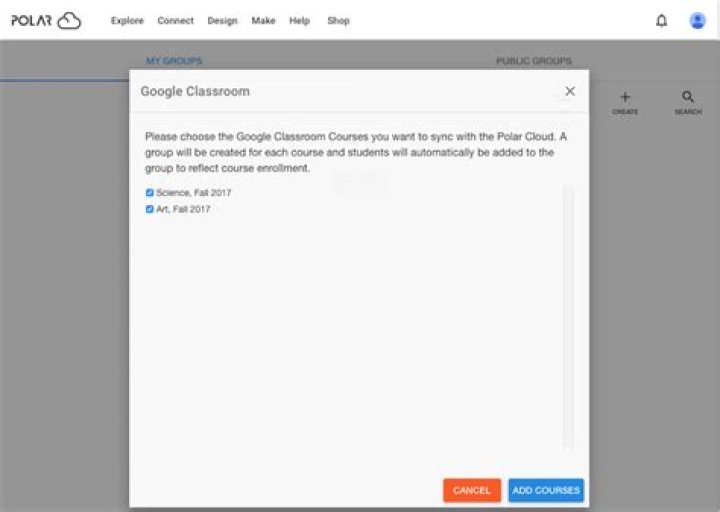
At the “Google Classroom” screen, select any classes for whichyou wish to create corresponding Polar Cloud groups, and click the“ADD COURSES” button; see Figure 7.10.
Figure 7.10: Polar Cloud Google Classroom screen: classes selected
Having selected the Google Classroom classes for which togenerate corresponding Polar Cloud groups, you will next be offeredthe opportunity to select printers to share with these Polar Cloudclass groups, as the Polar Cloud checks whether your account hasany printers accessible.
If you’re creating your class groups before you’ve registered aprinter or printers to your account, that is no problem: you canalways share printers with your class groups later, as normal; seeSection 9.2.3. Figure 7.11 shows an example where your accountdoes not yet have any printers available; in this case, click the“SUBMIT” button on the “Google Classroom” screen to go aheadand create Polar Cloud groups corresponding to your GoogleClassroom classes; see Figure 7.14.
Figure 7.11: Polar Cloud Google Classroom: no printers to share yet
However, if your Polar Cloud account does already haveaccessible printers that you would like your new class groups to use,then this can be an especially convenient moment to configurethat access! For each class group you are creating, you will bepresented with a list of printers you could share; click thecheckbox of any printer(s) you wish to share with that group,and then click the “NEXT” button; see for instance Figure7.12 and Figure 7.13. Once you’ve clicked the “NEXT” buttonfor the last class, your Polar Cloud groups corresponding toyour Google Classroom classes are created; see Figure 7.14.
Figure 7.12: Science, 2017 class: printer choices
Figure 7.13: Art, 2017 class: printer selected
The students in your Google Classroom classes will also bemembers of the corresponding Polar Cloud groups. These studentswill be able to log in to the Polar Cloud using the same Googleaccount they use for Google Classroom.
Note that currently, the transfer of information from GoogleClassroom to the Polar Cloud is a one-time, one-way transfer,occurring at the time of the Polar Cloud group creation. Subsequentchanges to the class list in Google Classroom will not be reflected inthe Polar Cloud group.
Figure 7.14: Polar Cloud groups corresponding to Google Classroom classes