Envelopes and Labels
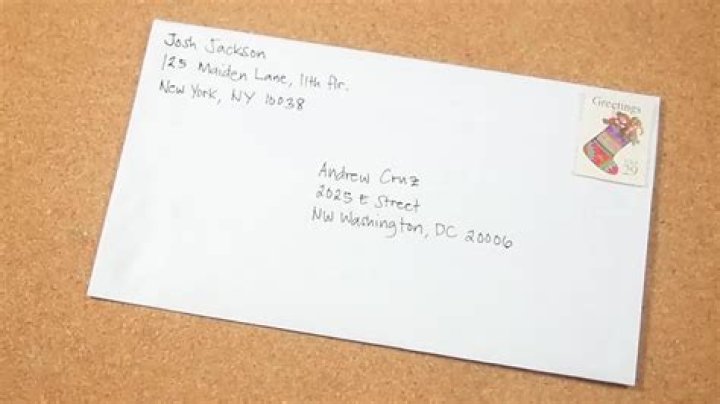
Junxure has the ability to print envelopes and labels for individual and multiple contacts.
In this topic we will cover how to:
Instructions in this topic also include how to use the Junxure Label Writer.
Create Envelopes and Labels for One Contact
Watch the Video: Printing a Single Label or Envelope
Use the quick label/envelope feature to print a single envelope or label for the selected contact. Though the envelope and label font settings are hard coded into the program, custom template allow you the flexibility to create your own layout.
- Open a contact's record and click the Label/Envelope icon.
- In the Quick Envelopes or Labels window, select an address from the left column for the selected contact. The selected address appears in the Mail To section. If an action note should be added, place the text in the Note box on the bottom right. Use the custom label drop down menu at the bottom of the screen to select a template. Click Print as shown below. (These templates need to be created in advance.)
Use the Letter/Envelope Wizard for Multiple Contacts
Watch the Video: Creating Multiple Labels or Envelopes
Follow the steps below to use the Letter and Envelope Wizard to create address labels or envelopes without creating a letter. The Letter and Envelope Wizard creates letters, address labels, and posts actions regarding the correspondence for multiple contacts at once.
See the Global Action Wizard for instructions on entering global notes or adding an action to multiple contacts at once.
See the Global Email Wizard for instructions on sending an email multiple contacts at once.
In Junxure, go to Letters > Letter Wizard.
Junxure will open the Letter Wizard, shown below. Click Next to continue.
There will be no documents chosen in this step. Click Next to continue.
Under Rule Category, choose "Select All Contacts" to run the report on all contacts in the database, "Select Client" to run on a single contact, or select the Rule Category Name or "All" to see all current Rules in the database. Use the Rule Name menu to apply an existing rule or click the New Rule button to create a new rule. See Creating New Rules for more information.
Junxure produces a list of contacts in the rule. Uncheck the names of the contacts in the area circled in blue below to remove them from the list and click the Remove Unchecked button (circled in green).If the rule did not produce the desired results, use the Back button at the bottom of the screen to go back to the Rule Step. Create a new rule or apply a different rule, the click Next to return to this screen.
Junxure will note with red highlighting and exclamation points those contacts that are missing critical information. To fix this data, you must leave the wizard and update the appropriate fields. Junxure will not include these contacts in the final application of this tool.
Note: To automatically remove contact names when they are unchecked, click the Auto Remove Unchecked People check box. Warning- to bring names back that are automatically removed, you must go back to the prior screen and re-run the rule. It is typically a better option to manually remove unchecked via the button circled in red.
In the Labels/Actions section on this next screen, check Create Labels/Envelopes and Record in Actions. From the drop down menu, select the template you wish to use.
If this requires no further action beyond the creation of the labels/envelopes, fill in the Type, Process and Note box, then click the Completed button just above the area highlighted in yellow. If action is required, click the Action Required button and complete the area highlighted in yellow, adding Action Keywords if necessary. Click Next to continue.
Note: You can exclude this letter from the Client's history by selecting the Exclude from History checkbox (circled below).
The Results window provides an overview of what Junxure will be doing with this tool. If there are any issues with the results as produced on this page, simply use the Back button to adjust the data on preceding screens or click the Cancel button to stop the Wizard entirely. Check the Print Recipient List box to print a list of people who are assigned this action.
Check the Save in Letter History box to record this in the Letter History Report for compliance purposes. Use a concise but brief name to label this in letter history for quick reference later.
Junxure will Default to the Document Name in the Letter History Name. If this is a regularly used template, this name may not accurately reflect what is contained in the document during this run.
Click Finish circled in red above to start the tool. Junxure will produce several confirmation windows after the tool has run. Click "yes" or "ok" to all confirmations to complete the wizard.
When Junxure is ready to print labels/envelopes, it will open the template in Microsoft Word and allow you to print. <![CDATA[ ]]>
Use Microsoft Word Templates to Create Labels and Envelopes
If you currently have envelope or label templates setup outside of Junxure, use the Custom Label button highlighted in green below on the main Quick Envelopes screen. To add templates to this drop down, use the Setup button circled in red below.
Note:Templates will display in the drop-down automatically. If you did not assign a category, you will be able to navigate to the proper category by clicking Setup.
The Setup Custom Envelopes window opens. Use the Find File button to navigate to the appropriate file created in Word as a Microsoft Template. These must be setup as merge documents using C:/Junxure/clientMerge.rtf as a data source.
Name the template in the Label Name field, and this will be available through the Custom Label drop down in the Quick Envelopes main window.
If you have specialized templates in Microsoft Word, use the Create Document Template feature, making sure to use the template category of Label or Envelope (in List Data Maintenance) under Document Categories. These templates will then appear in a drop-down in the Letter/Envelope wizard as well as the individual Document creation through Actions as seen below.
How to Add Envelope and Label Templates
To create standard templates in Junxure for envelopes and labels, in Junxure, go to Letters > Document List.
Click Add Labels and Env. as highlighted below. A popup displays, allows you to create labels and templates.
Use the Junxure Label Writer
Although Junxure recommends using the method above to create labels and envelopes, you may also use the Junxure Label Writer.
To Print a label
- On the Junxure Label Printer window, choose the tab highlighted in green titled Junxure Label Templates for standard template. Scroll down the list, choosing the preferred label template.
- Use the scroll bars highlighted in yellow to choose which position the label should be printed. This enables you to use the same label sheet over many different contacts and times. The Data Preview tab will show you the data as Junxure will print it. If this needs to be changed, use the Edit Label Information button in the upper left corner to manually change address. See Customize Your Label or Envelope below.
To Print an Envelope
- On the Junxure Label Printer window, click the Junxure Label Templates tab. Scroll down the list, choosing the Envelope template. Use the Data Preview tab to review the address as it will be printed on the envelope. If this needs to be changed, use the Edit Label Information button in the upper left corner to manually change address. See Customize Your Label or Envelope below.
- Click Print Selected Label . When the Print Preview screen appears, click Print.
- Close out of the tool.
Customize Your Label or Envelope
- Click on the Edit Label Information button in the upper left hand corner of the Junxure Label Printer window. The window will display more criteria to the right hand side of the preview (Label Layout) region as shown below.
- Create a basic name for the template in the area highlighted in green. Don't make this name too simple, rendering it difficult for quick access later.
- Changes to the font style and size can be made in the area highlighted yellow. Use the Rotate Text button if the text should be printed top to bottom instead of side to side.
- The H Align and V align features adjust the horizontal and vertical alignment of text.
- To set the size dimensions of the envelope or label, use the area highlighted in blue. To convert fractions into decimals, Junxure provides a quick tool at the bottom of the window, circled in blue. Simply put the appropriate numbers in the top and bottom of the fraction, and Junxure calculates the decimal representation in the grey area to the right of the fraction.
- For envelopes or single labels, the Page Width/Height and the Label Width/Height will be the same values. For sheets of multiple labels, the Page dimensions will reflect the entire sheet (often 8.5 x 11") and the label width will reflect the size of the individual label.
- If you are creating a template that has multiple labels on a sheet, use the Columns/Rows indicator to show how many labels across and down and Column Separation to indicate how much space (if any) between labels going across.
Margins will indicate the amount of blank space around the actual address. If this is set too high, Junxure may give you an error saying there is not enough height or width to print. Simply decrease or set the margins to zero.
Use the Refresh View button at any time to see the preview window reflect changes made.
- To print a sample, click the Print Sample Data button.
- When the label/envelope meets your specifications, click the Save to your Templates button at the top right corner of the page, circled in red above. The template will be added to the Your Labels templates.
To Print a Label
On the Junxure Label Printer window, choose tab highlighted in green titled Junxure Label Templates for standard templates (including brands such as Avery Labels). Scroll down the list, choosing the preferred label template.
Use the scroll bars highlighted in yellow to choose which position the label should be printed. This enables you to use the same label sheet over many different contacts and times. The Data Preview tab will show you the data as Junxure will print it. If this needs to be changed, use the Edit Label <![CDATA[ ]]>Information button in the upper left corner to manually change address.
To Print an Envelope
On the Junxure Label Printer window, choose tab highlighted in green titled Junxure Label Templates. Scroll down the list, choosing the Envelope template. Use the Data Preview Tab to review the address as it will be printed on the envelope. If this needs to be changed, use the Edit Label Information button in the upper left corner to manually change address.
Click the Print Selected Label button circled in red above. When the Print Preview screen appears, click the Print button.
Close out of the wizard.