Google Earth
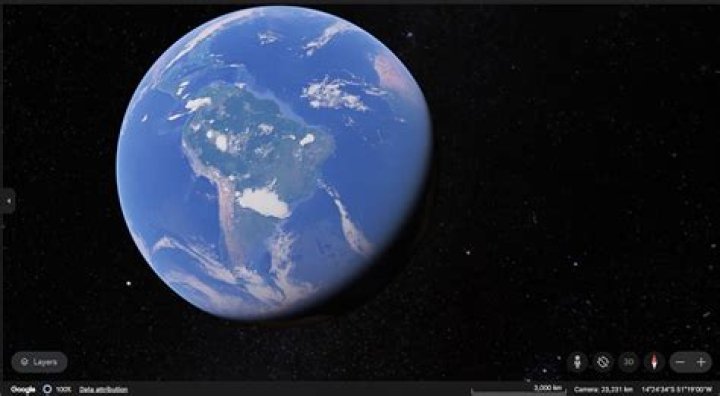
This file format, which is similar to Collada, can be used for transferring Google Earth models.
The Google Earth files have the extension ".kmz" and can be used for both importing and exporting.
Importing images from Google Earth into form•Z
It is sometimes convenient to save an aerial image from the Google Earth application and to map it onto a flat polygon in form•Z. Here is how the complete process works:
• Run Google Earth and select the desired view. Press the U key shortcut to make sure that it is a top view (and the camera is vertical).
• Choose Save: Save Image from the File menu and save the file.
• From the Tools menu, select Ruler and measure the horizontal and vertical dimensions of the screen.
Google Earth Ruler.
• In form•Z, draw a rectangle that matches this size by clicking anywhere to start drawing and entering the dimensions in the Input palette at the top of the screen. Press enter or return to complete the rectangle.
• Edit the current Material, set the Color to Texture, and load the image you saved from Google Earth.
• Get the Edit Texture tool (from the Attributes suite of tools), click on the rectangle, uncheck the Lock Size option, move the corner of the texture map to the bottom left corner of the rectangle, and move the diagonal arrow to the upper right corner of the rectangle.
Edit Texture Map.
• Double-check your work by measuring a known (large) part of the site. If necessary, scale the rectangle by the appropriate factor (known size / measured size).
With the desired image loaded, the 2D flat surface it is mapped onto can be manipulated just like any other piece of geometry. You are able to create objects right on top of it, as well as cut and carve the image.
Exporting to Google Earth
The Latitude and Longitude fields of the Modeling Export Options: KMZ dialog.
A completed model can be exported and viewed in Google Earth.
From the form•Z File menu, select Export, KMZ. You can save the .kmz file to any name you choose.
Inside the Modeling Export Options: KMZ dialog, form•Z automatically sets the Latitude and Longitude of the site based on the aerial image that was imported from Google Earth. Note that you can also manually type the desired coordinates of your model into these fields.
Inside Google Earth, select File, Open and locate the .kmz file you just saved and it is imported to the program. Note that, although you're now able to view your model inside Google Earth once the .kmz file is loaded, it is not made public (i.e. on a another computer). In order for someone on another computer to see your model inside Google Earth, you have two choces:
• send the .kmz file along with the image maps,
• or you can upload the .kmz file to Google's 3D Warehouse.
A model in form•Z, exported as a .kmz file, and opened in Google Earth.