Manipulating Polar Cloud objects in Tinkercad
6.3.3 Manipulating Polar Cloud objects in Tinkercad
To manipulate a Polar Cloud object in Tinkercad, first youneed to import the Polar Cloud object into Tinkercad, andthen set any properties, as appropriate (the object source,license, whether it’s private, etc.). Then “Tinker this” on theobject!
Importing Polar Cloud objects into Tinkercad is performed justlike importing any industry-standard .stl file (or OBJ file) objectinto Tinkercad.
Begin by downloading the Polar Cloud object(s) you wish tomanipulate; see Section 5.5.
Open up Tinkercad and log in; for instance, you may click on theTinkercad tile on the Polar Cloud “DESIGN” screen.
At the Tinkercad tinkering window, click the “Import” button(towards the upper right); see Figure 6.57.
Figure 6.57: Tinkercad tinkering window Import button
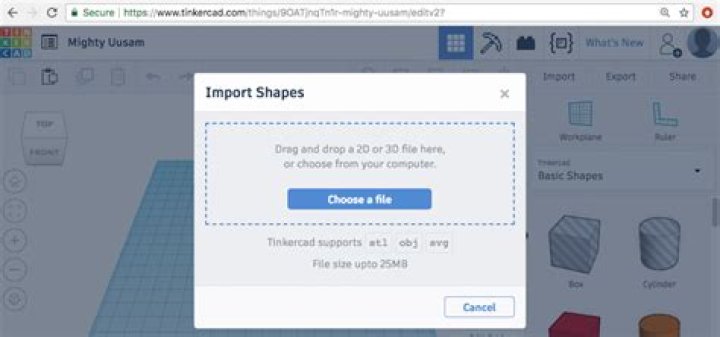
At the Tinkercad “Import Shapes” screen, specify thedownloaded Polar Cloud object file; see Figure 6.58.
Figure 6.58: Tinkercad Import Shapes screen
Once you’ve imported your Polar Cloud object, returning to yourTinkercad dashboard will show the object. Hovering over an objecton your Tinkercad dashboard will bring up a “Tinker this” buttonand a settings gear; see Figure 6.59.
Figure 6.59: Tinkercad dashboard: hover over object
If you want to set some properties on your imported object, suchas licensing and attribution for the source of the object, click on thesettings gear and select “Properties”; see Figure 6.60. Then at theTinkercad object “Design properties” screen, see Figure 6.61, youmay enter a description for your Tinkercad object (for thedescription, you might enter the URL pointing back to yourPolar Cloud version of the object), and select a “License”type for the object (which normally you would align with thePolar Cloud object’s “License” type), as well as enter otherfields. Click “Save changes” when you have completed yoursettings.
Figure 6.60: Tinkercad dashboard: object settings menu
indexCAD software!Tinkercad!Object, Design propertiesscreen@Object, Design properties screen
Figure 6.61: Tinkercad object Design properties
Then back at the Tinkercad dashboard “My recent designs”display, again hover over your object and click “Tinker this”, seeFigure 6.59, to begin editting your object!